Welcome to Go2Run
Describe an app. Run it. Publish. That's the whole loop — Go2Run handles everything in between.
❇ Skip the explanation? Go straight to Build your first app — about five minutes to your first live URL.
How it works:
Three steps, each one click apart:
Describe.
Type what you want into the chat box. Plain English or Chinese, no syntax. The more specific the prompt, the closer the result.
Run.
Click 「RUN IT NOW」. Behind the scenes Go2Run plans the structure, writes the code, installs dependencies, and sets up storage if your app needs to remember things — then runs the app live in the preview area.
Publish.
Click 「PUBLISH」. Your app gets a 「your-app-xxxx.go2run.app」 URL anyone can open — hosting, HTTPS, and a clean URL, all automatic. Send it to teammates as a prototype, hand it to early users as an MVP, deliver it to a client, or open it to the public as a real product.
Want to keep going? Keep talking. Every reply rebuilds the app on the spot — change copy, swap colors, add features, restructure the data.
What people build:
A few situations Go2Run handles well:
- ☑️Personal projects — a daily mood tracker, a side-project landing page, a portfolio with a working contact form.
- ☑️Team tools — onboarding portals, status dashboards, simple CRMs, internal admin UIs.
- ☑️Pitch demos — a "what this product would feel like" prototype to show customers or investors before committing to a real build.
- ☑️Classroom & teaching — instructors handing students working examples; students shipping their first deployed app.
- ☑️Real launches — actual products and MVPs deployed to a custom domain and shared with end users.
Not sure where to start? Build your first app has a ready-to-paste prompt.
What you build on:
Go2Run generates full-stack web apps on a modern TypeScript stack — typically React + Vite + Tailwind + Prisma, with Bun as the runtime. The AI writes the code, you describe the intent.
It plays well with:
- ☑️Custom domains — once published, point your own domain at the app; HTTPS is auto-provisioned.
- ☑️Built-in database — browse tables and edit rows in the editor; the AI designs the schema.
The code is yours — you can download what Go2Run generates whenever you want.
Next to read
Go2Run isn't just for developers — anyone can ship a working app in minutes.
Build your first app
Turn one sentence into a working app — no code required.
Let's walk through a real example:
❤️ "Build a personal task planner app where people can quickly add daily tasks, set priorities and due dates, drag tasks to reorder them, and mark them as completed. Show simple daily progress tracking and keep everything saved locally in the browser without requiring login."
You can start without an account — Go2Run will prompt you to sign up partway through. Ready? Let's go 👇
Option 1 · Guided walkthrough
Option 2 · Step-by-step walkthrough
The same flow as the Guided walkthrough above, in text and screenshots. First time on Go2Run? Follow these steps and you'll have a working app in a few minutes:
📌 Step 1.
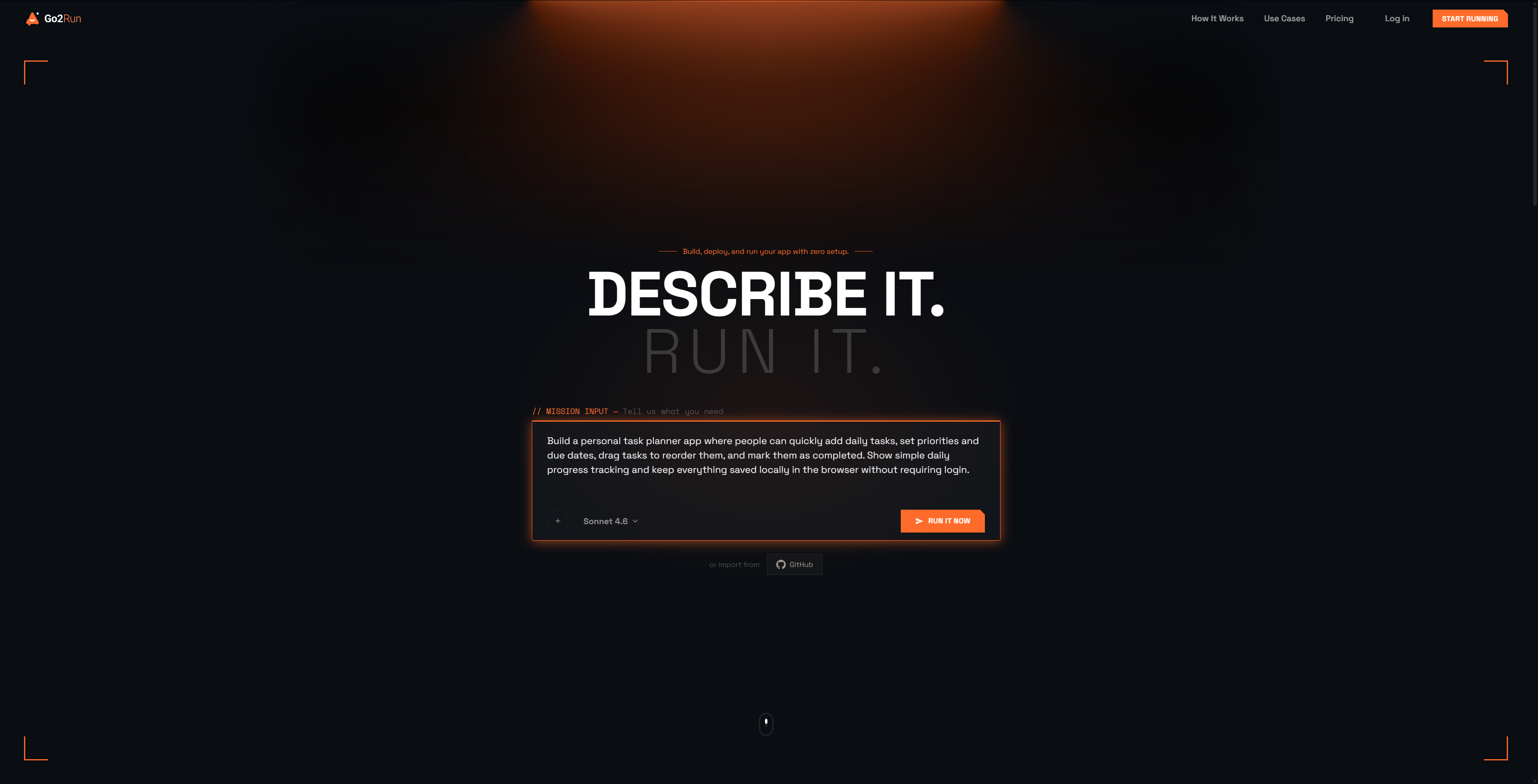
Open go2run.ai in a new tab. The big MISSION INPUT box in the middle of the page is where everything starts.
📌 Step 2.
Paste this prompt into the MISSION INPUT box, then click RUN IT NOW at the bottom right:
Build a personal task planner app where people can quickly add daily tasks, set priorities and due dates, drag tasks to reorder them, and mark them as completed. Show simple daily progress tracking and keep everything saved locally in the browser without requiring login.
📌 Step 3.
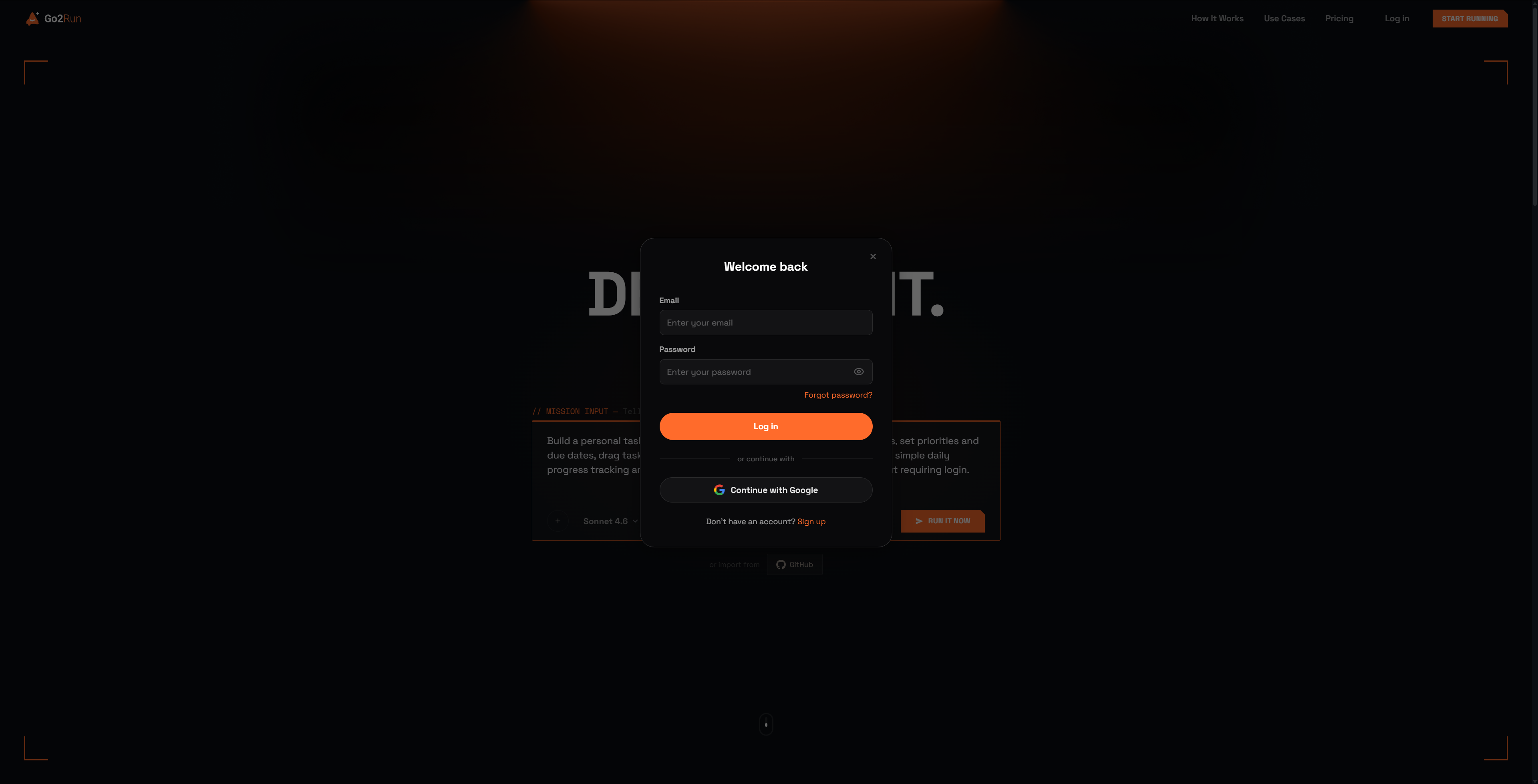
Sign in or sign up (email or Google — no credit card required). You'll skip this step if you're already logged in.
📌 Step 4.
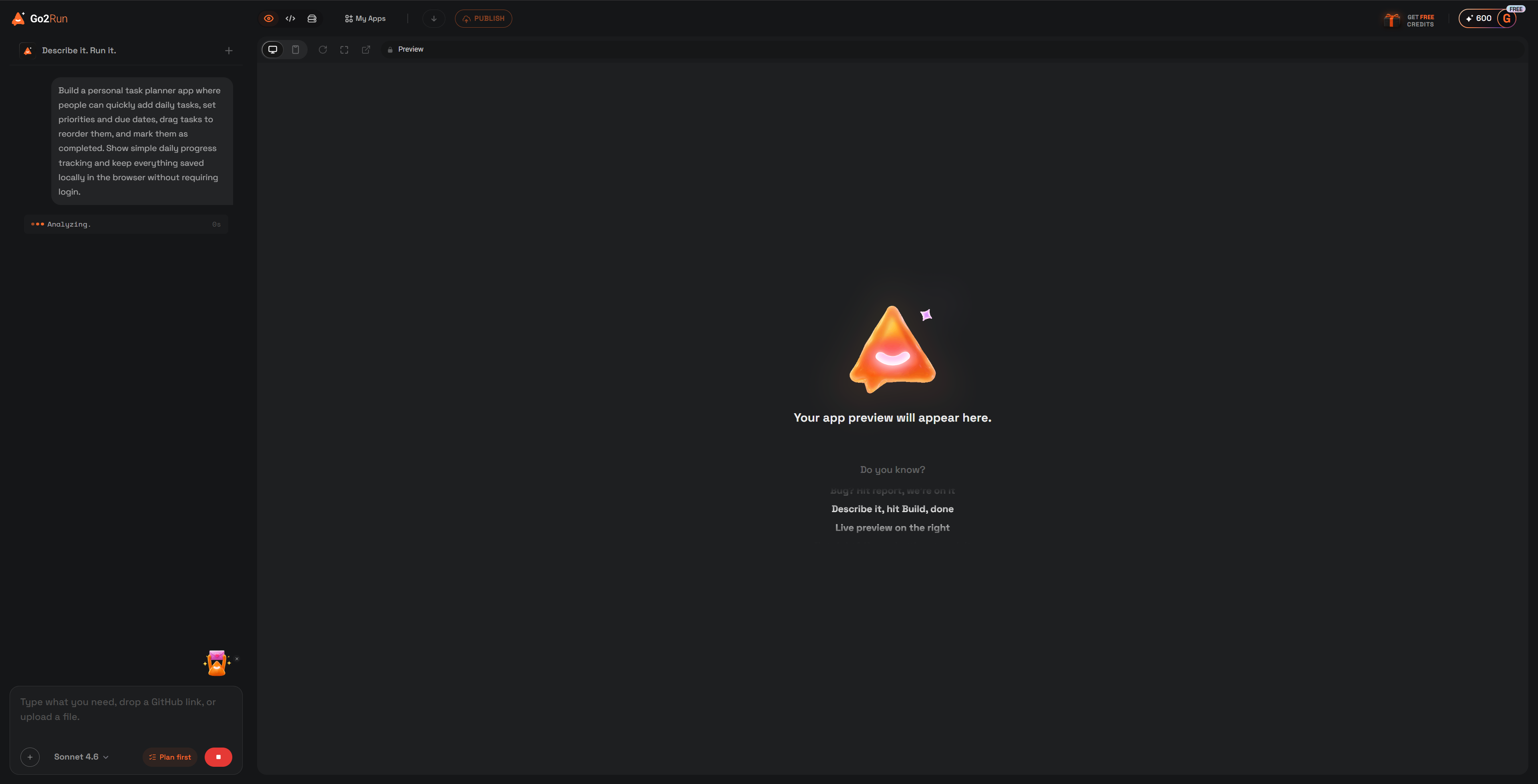
You'll land in the Project Editor. Wait a few minutes while Go2Run plans the structure, writes the code, and installs dependencies — the left panel shows Analyzing while the right panel fills in build progress.
💡 Because this prompt's features don't require login or external services, it usually builds faster.
📌 Step 5.
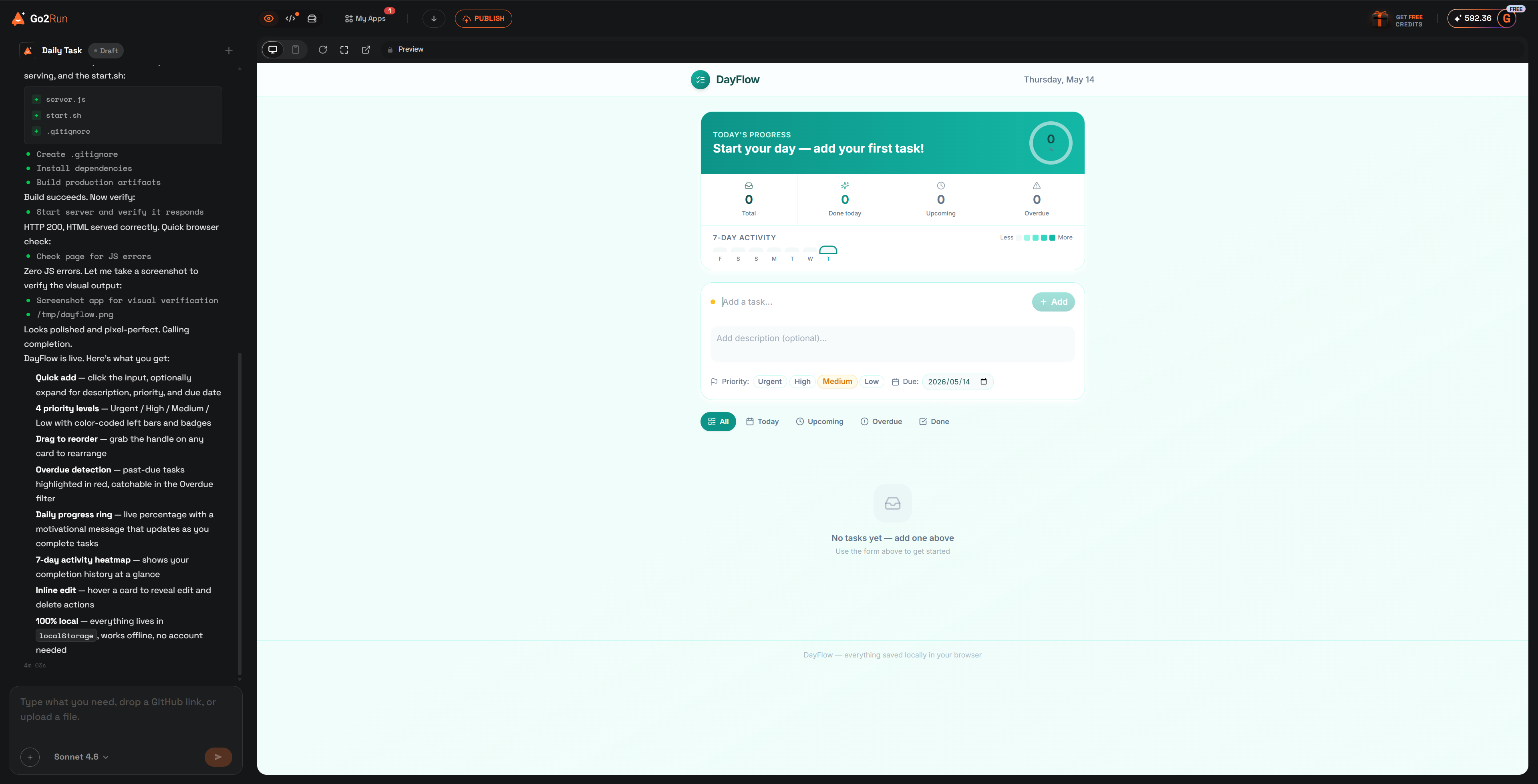
Once your app is running in Preview, try it out — add a few tasks, set priorities and due dates, drag to reorder, check them off. Happy with it? Click the orange PUBLISH button in the top right to deploy. Go2Run packages and ships it, then gives you a default URL like your-app-xxxx.go2run.app.
📌 Step 6.
Once live, go to My Apps in the top bar — copy the endpoint link to share with anyone, or connect a custom domain.
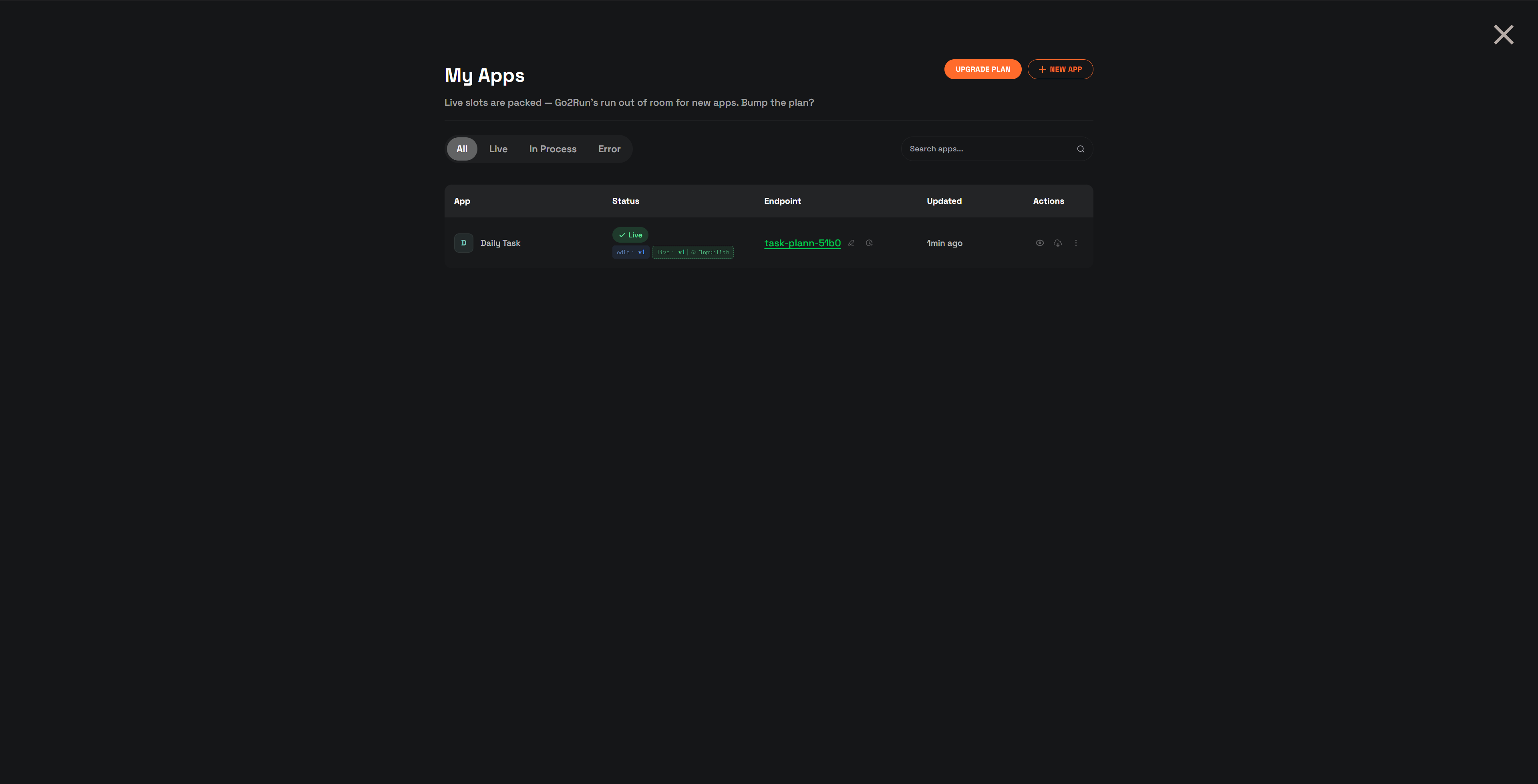
🎖️🎖️🎖️ Done! You just built and deployed your first Go2Run app!
Publish & edit domain
Deploy your app to the public web — and put it on your own domain.
Building vs publishing
Everything you do in the Project Editor — describing, previewing, modifying — happens in your building environment. Only you can access it.
Publishing is what puts your app on the public web, so anyone can open it via URL.
How to publish
Click the PUBLISH button in the top right of the Project Editor. Go2Run packages your app, deploys it to its servers, and assigns a default URL:
https://<your-app-name>-<xxxx>.go2run.app
<xxxx> is a 4-character random suffix appended automatically, so each app gets a unique subdomain.
Updates and re-publishing
After modifying your app, click PUBLISH again — the same URL updates to the latest version. Visitors just refresh to see it.
Connect a custom domain
Want your app on app.yourcompany.com instead of the default Go2Run URL? You can connect any domain you own.
Open the Domains dialog
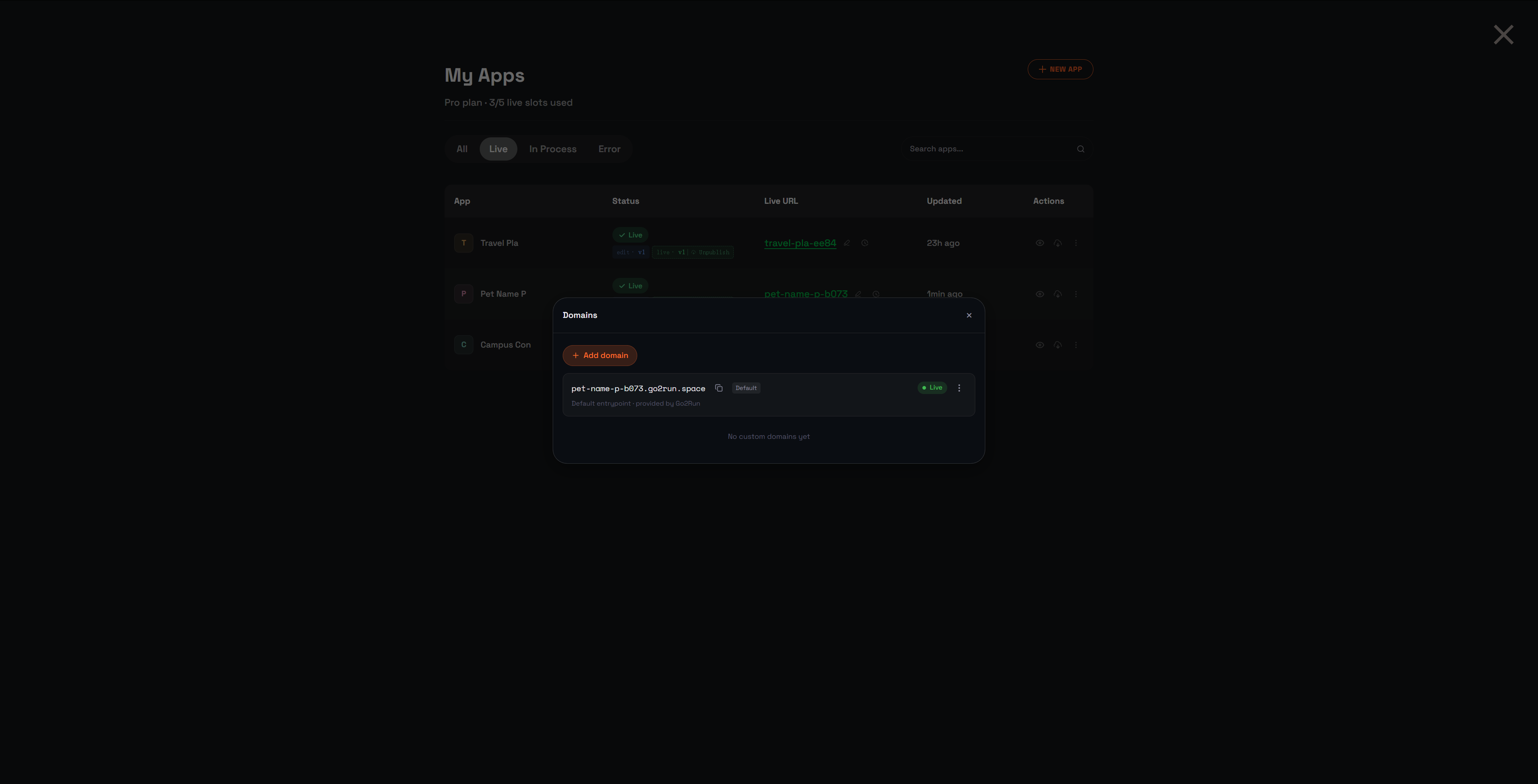
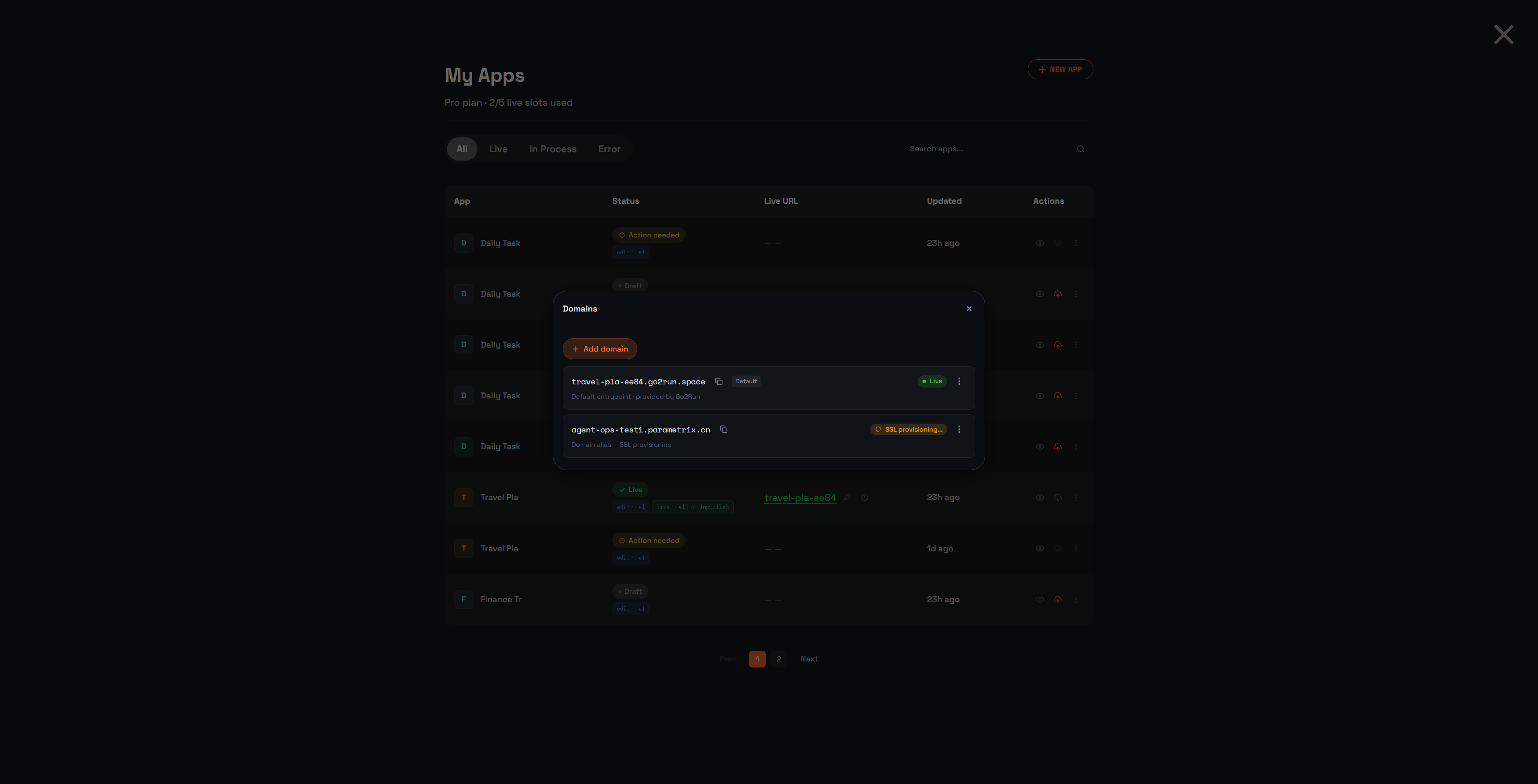
From My Apps, find your app in the list. In the Live URL column, click the pencil (edit) icon next to the URL. The Domains dialog opens, showing your default *.go2run.app URL.
Click + Add domain to start adding a custom one.
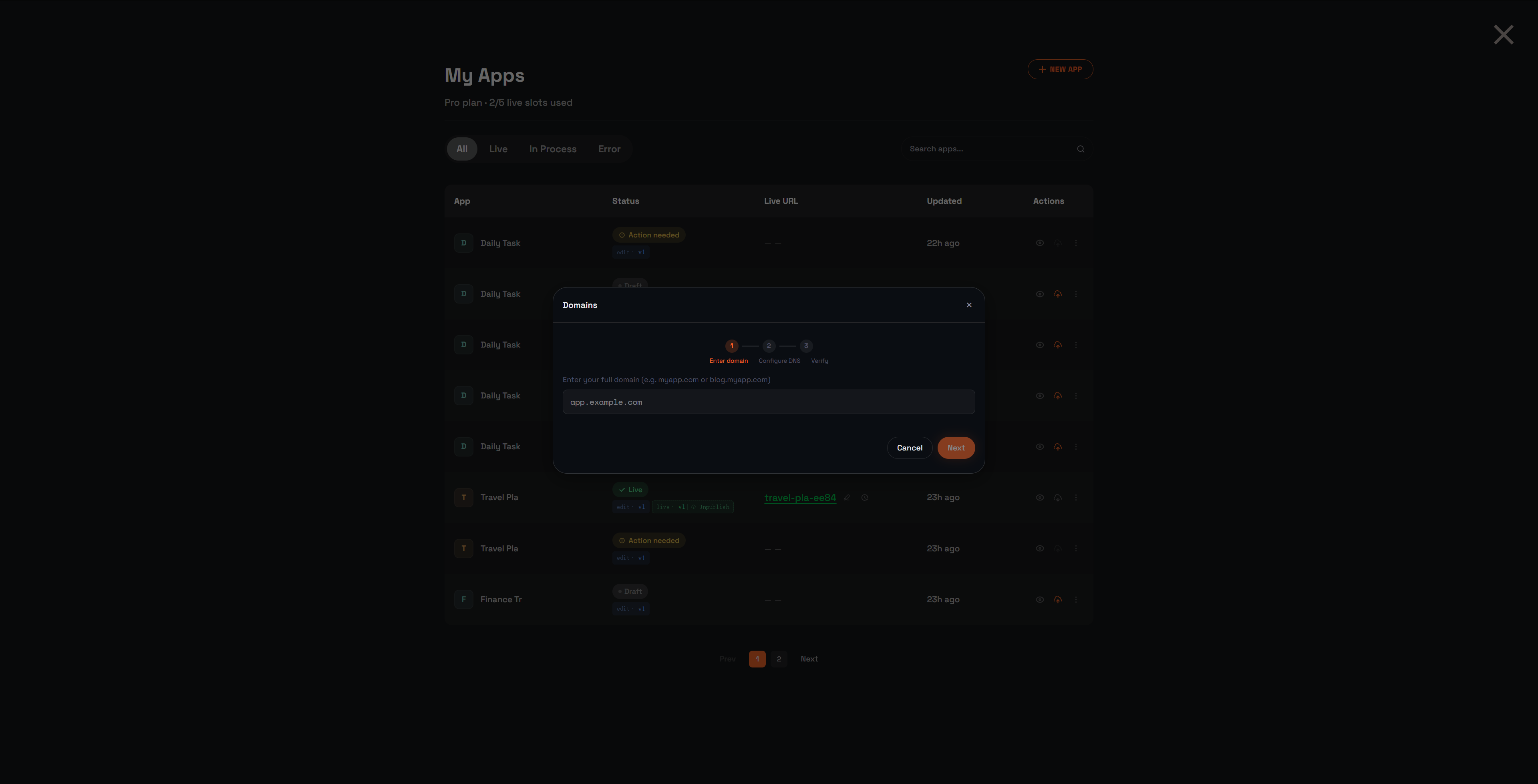
1 Enter domain
Type your full domain — either the apex (myapp.com) or a subdomain (blog.myapp.com) — and click Next.
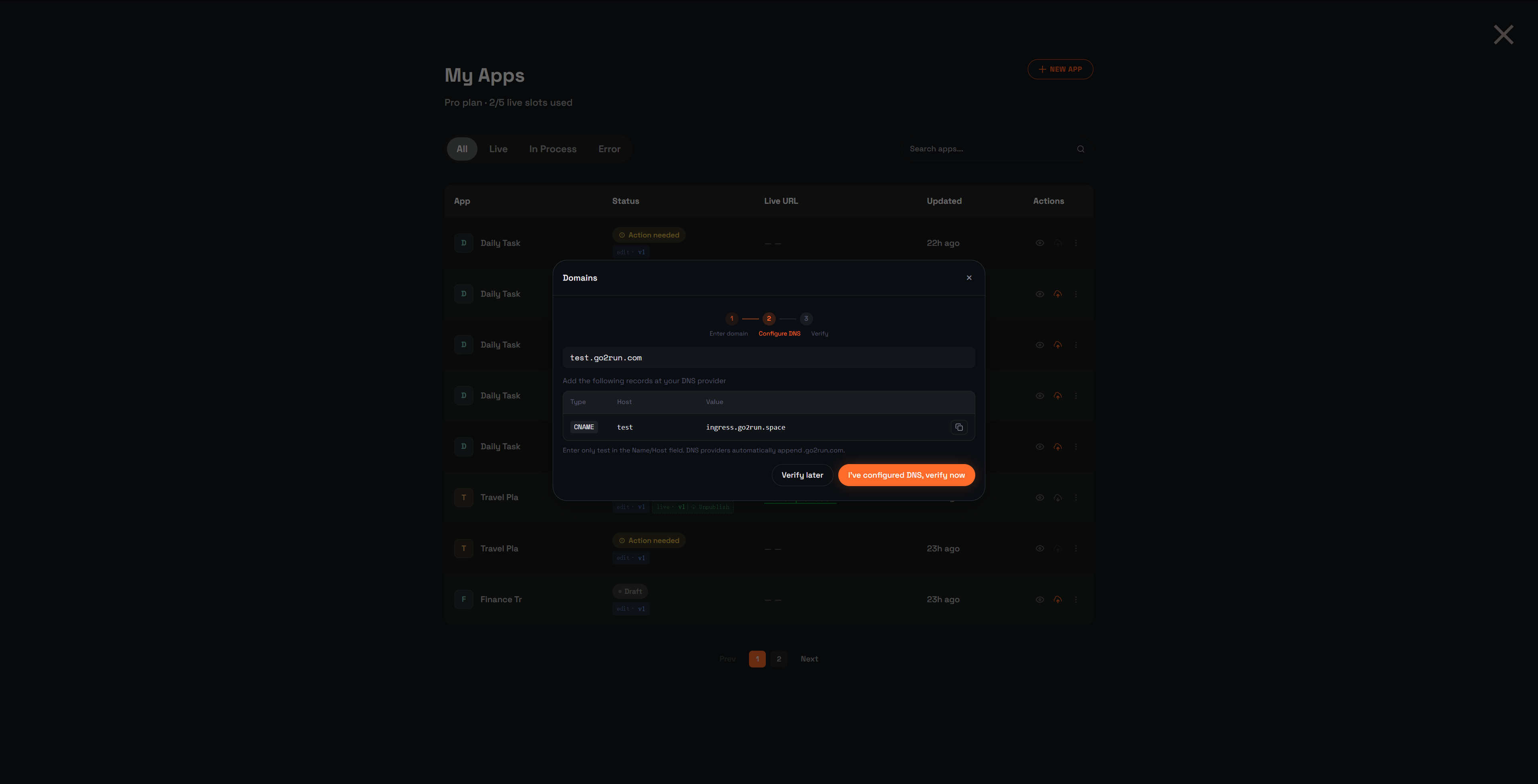
2 Configure DNS
Go2Run shows you the exact DNS record to add (Type / Host / Value). Copy the value, log into your DNS provider (Cloudflare / Namecheap / DNSPod / etc.), and add the record.
💡 The Host field is just the subdomain part (e.g. test, not test.go2run.com). DNS providers auto-append the base domain.
Once the record is saved at your DNS provider, click I've configured DNS, verify now. If you need more time, click Verify later and come back.
3 Verify
Go2Run checks DNS propagation (usually a few minutes). Your new domain appears in the Domains list with SSL provisioning… while HTTPS is being set up via Let's Encrypt — no certificate upload needed. Once SSL is ready, the status flips to Live.
Rename your default subdomain
The default URL Go2Run gives you looks like pet-name-p-b073.go2run.app — works, but not great for sharing. You can add a friendlier subdomain on the same .go2run.app base:
Open the Domains dialog
From My Apps, click the pencil icon next to your app's Live URL.
Open the Default entry's menu
Click the ⋮ (kebab icon) at the right end of the row marked Default.
Click "Add new subdomain"
Type the new subdomain you want — just the part before .go2run.app — and save. It appears as a new entry in the domains list, working alongside the original.
Pick which domain users see
When an app has multiple domains — default, custom, or extra subdomains — one is the primary: the URL Go2Run treats as the public address. To switch:
Open the Domains dialog
Same as above — pencil icon next to your Live URL.
Open the target domain's menu
Click the ⋮ menu on any non-primary entry in the list.
Click "Set as primary"
That domain immediately becomes the user-facing URL. Other domains keep working as aliases — visitors landing on them are redirected to the new primary.
Mobile access
Published apps are responsive — desktop and mobile browsers open them directly, no extra setup.
Manage database
A built-in database for every app that needs one — no third-party tools, no separate setup.
Go2Run handles database provisioning so you can focus on what your app does, not on configuring servers. When your prompt implies data that needs to survive a refresh — users, tasks, posts, orders — Go2Run sets up a database during generation and wires the connection into your app code automatically.
How a database is provisioned
Just describe the app. Go2Run reads your prompt and decides what's needed:
- Mention accounts or sign in → a users table with the right columns
- Describe a trivia app → tables for questions and answers
- Describe a CRM → tables for contacts, deals, notes
You can also be explicit when you don't want to leave it to inference:
Add a users table with email, name, and signup date.
Either way, Go2Run designs the schema, creates the tables, and wires up the code that reads and writes them.
Don't need a database?
If your app keeps everything in the browser or doesn't need persistence, tell Go2Run to skip provisioning. Add a line to your prompt like:
Don't create a database for this — use browser local storage instead.
Edit your data
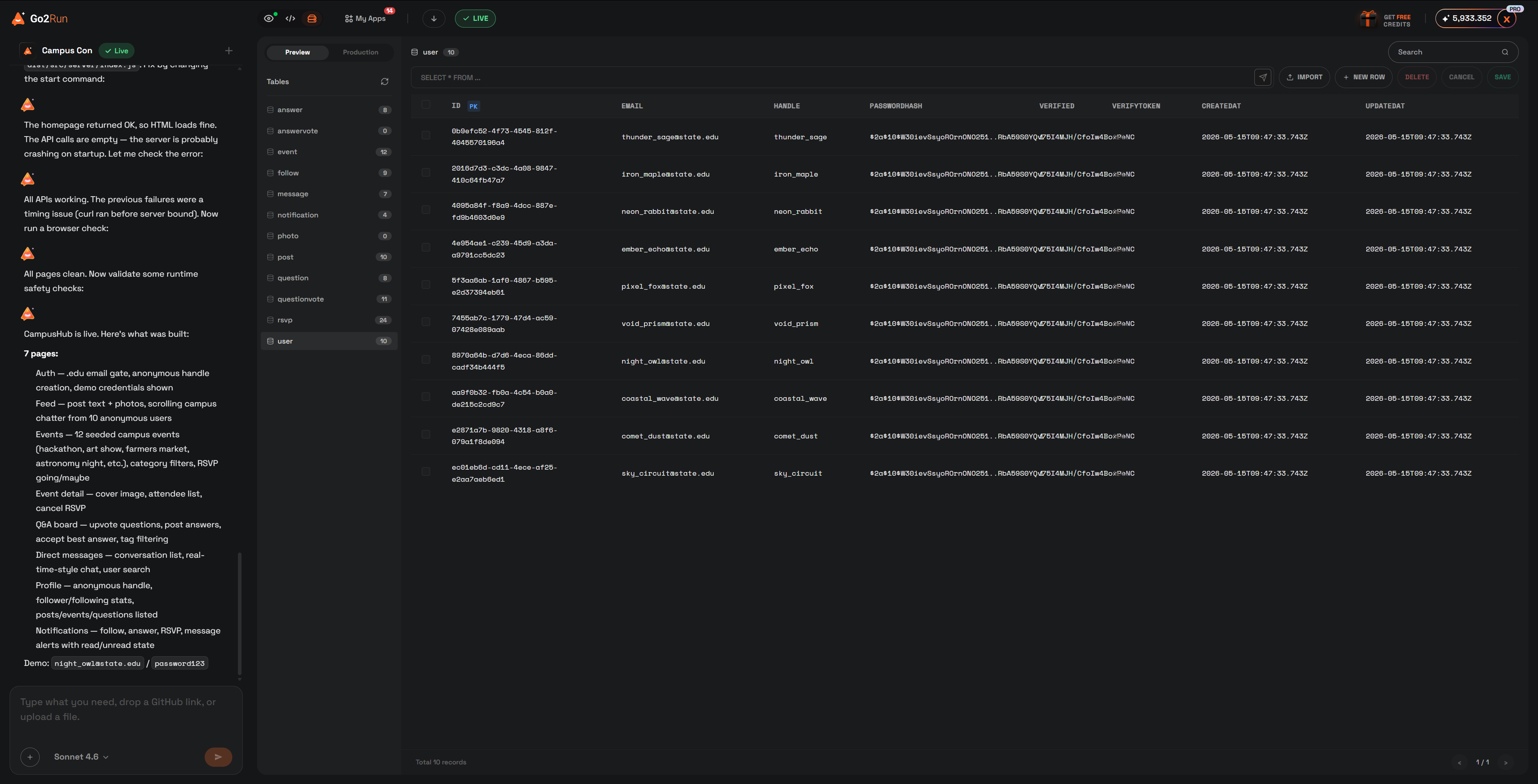
The database panel in the editor shows your tables alongside your chat. Inside the editor itself, two things you can do directly:
- ☑️Add a new row
- ☑️Delete an existing row
Everything else — adding columns, renaming fields, changing types, indexes, migrations — happens through chat with the AI. Just describe the change:
Add a "priority" column to the tasks table (low / medium / high), default medium.
Go2Run updates the schema, migrates existing rows, and patches the app code that reads or writes that column.
SEO & search indexing
Help search engines and AI assistants understand your app correctly, so it can bring you organic traffic.
Publishing an app doesn't put it in search results. Go2Run ships an SEO checkup: scan once and you get a list of what's missing — the platform fixes part of it for you, and AI handles the rest. This section walks the whole path from zero to indexed.
Open the SEO panel
In the workspace top bar click Dashboard, then pick SEO on the left.

That top-right switch is the master control for this app. Search engines only index the app once it's on.
Turning it off is not the same as doing nothing: the app will explicitly tell search engines not to index it, and pages already indexed will drop out of results over time. Page titles, descriptions, and the preview card people see when sharing on social platforms keep working either way.
Run a checkup
With the switch on, click Run scan. The platform crawls your pages, runs them through the rule checks, then has AI review them — usually a minute or two. Scanning is free, no credits. Results are stored per environment:
- Live — checks the published site you've already published. This is the one search rankings actually depend on; treat it as the source of truth.
- Preview — the only option before you've ever published. Your preview has to be running, otherwise the scan fails.
Both results are kept and you can switch between them at the top of the panel. Re-scan the Live results after every republish — the "Changed since scan" note next to the score is telling you the results are stale.
Reading the results
Results come in two parts: the SEO score and its breakdown on top, the item-by-item list below.

- To fix — real problems that hurt indexing or how you appear in results. Start here.
- To review — technically fine, but could be better. Get to these when you have room.
- Good — already passing, collapsed by default. Expand to see what was checked.
Each item also carries a severity label:
- Important — directly affects whether you can be found at all. Don't skip these.
- Recommended — clear payoff for the effort.
- Optional — nice to have.
Three ways to fix things
Expand any item and the bottom right shows what's available for it:
Fix automatically — no credits
Crawler rules, sitemaps, structured data — anything the platform generates itself. One click and it's done, no credits, and your app's code isn't touched.
Fix with AI — uses credits
Items that need page content changed (title too short, missing description, images without alt text) go to AI, which edits your app exactly like a normal chat turn. This uses credits, and progress shows in the chat on the left.
Edit here — do it yourself
For titles and descriptions you know better than AI does, "Edit here" jumps straight to the right field. Typing it yourself is the fastest path.
When there's a lot to do, use Fix N issues on the score card: the platform first clears everything it can fix for free, then bundles the AI-dependent ones into a single turn. If that turn hits its step limit, refresh and click it again for whatever's left.

Some items AI genuinely cannot fix — contact details, company information, real product specs. Only you know those, and AI won't invent them. The panel will tell you to give it that information in the chat on the left, and it will write it into the page.
Making fixes go live
Auto-fixes, AI fixes, and titles you edited yourself all land in the preview environment first.
The live site only updates when you publish again. This is the step people miss — if you fixed everything and search results look unchanged, you almost certainly haven't republished. Republishing for SEO fixes costs no credits.
How long until you show up
After you publish, the platform submits your sitemap to Google and Bing automatically. Submission itself takes a minute or two; you can watch it under "Search engine submission" at the bottom of the panel.
Submitted is not the same as indexed, though. Search engines typically take days to weeks to actually index a site, longer for a brand-new one. To check where you stand, type this into Google:
site:your-app-xxxx.go2run.app
Results mean you're indexed. Finding nothing in the first few days is normal — republishing over and over won't speed it up.
What a custom domain changes
Platform subdomains index perfectly well, but your own domain reads as more credible to both search engines and AI. For how to connect one, see Publish & edit domain. One thing to watch: after connecting a domain, publish once more so search engines attribute the app's indexing fully to the new domain.
Also in the panel
That's the main path. A few other areas get less use — each is explained inline in the UI, so here's just what they are:
- ☑️Page info — set the title and description per page, i.e. the two lines people see in search results. Leave blank to use the auto-generated ones.
- ☑️Advanced — the things the platform handles automatically (titles and descriptions, structured data, crawler rules, sitemap, breadcrumbs, AI discovery) can each be turned off, and you can control page by page what stays out of search results.
- ☑️Public app directory — list your app on the public directory page on go2run.ai so search engines find it sooner. Your app's name and description become publicly visible; off by default.
- ☑️Extra suggestions from AI — what AI noticed reading your site, beyond the rule checks. Not counted in the score.
In-app payments
Connect Stripe to your app so customer payments land directly in your own account.
Building a store, a subscription, a paid download, or anything else that takes money? Connect your own Stripe account to collect it. The money moves through your Stripe account and the platform takes no cut. This section covers the whole path from nothing to real payments, including the steps you do on Stripe's side.
Before you start
Your app needs payment code first
Tell AI in the chat what you want to charge for ("add a $9.90 membership subscription", say) and it writes both the checkout page and the payment callback. Until that code exists the panel just says the app doesn't use payments yet, and configuring it early gets you nothing.
Requires Plus or above
Real payments are a Plus feature. You can still get everything working without upgrading: preview runs in sandbox mode by default, so you can walk the full checkout with a test card — it just never charges anyone.
The preview environment can never take a real payment — it only accepts test-mode keys and rejects live ones. Experiment there as much as you want.
Turn payments on
Top bar Dashboard → Payments on the left, then flip Accept payments.

Below the switch are two completely separate configurations: the preview container uses the "Preview" group, your published app uses the "Production" group. Saving takes effect immediately — no need to restart the preview.
Get your keys from Stripe
Each group takes two values: a Secret key and a Webhook secret. Start with the secret key:
Sign in to the Stripe Dashboard
No account yet? Sign up at stripe.com and fill in your business or personal details as prompted — real payments require a verified account, test mode does not.
Switch to the right mode
There's a Test mode toggle in the top right of the Stripe Dashboard. Test and live keys are two separate sets and are not interchangeable: switch to test mode for the preview group's key, back to live mode for the production one.
Copy the secret key
Open Developers from the bottom of the Dashboard (it is not in the left nav) → the API keys tab, find the Secret key row under Standard keys, reveal it and copy. Test-mode keys start with sk_test_, live ones with sk_live_.

A secret key is the key to your Stripe account. Don't paste it into chat and don't put it in your app's code — this panel is the only place it belongs. Once saved the platform never shows it again, and an empty field means "leave unchanged".
Fill in both groups
Back in the payments panel, put each key in its matching group:
- Preview — only accepts keys starting with
sk_test_; anything else is rejected. That's what guarantees nothing in preview can charge a card. - Production — takes real money only with
sk_live_. Ansk_test_key saves fine here too, but then your live app stays in test mode and customers never actually pay. Swap it before launch.
Leave Webhook secret empty for now — you'll get it in the next step. Then hit Save.
Set up the webhook callback
When Stripe takes a payment it has to tell your app the payment succeeded, and that notification is the webhook. Without it your customer pays, your app never hears about it, and the order sits unpaid forever. The preview and production groups each carry their own <strong>Webhook endpoints</strong> block:

Copy the endpoint URL
Start with the one in the Production group. It's empty until the app has been published at least once (that's when the live domain appears); the preview URL shows up once the preview is running.
Add the endpoint in Stripe
In the Stripe Dashboard open Developers at the bottom → Workbench → the Webhooks tab → Add destination. In step 1 (Select events) set the event scope to Your account — not Connect accounts — and leave the API version as-is; in step 2 pick Webhook endpoint as the destination type; in step 3 paste your callback URL and leave Payload style on Snapshot (the platform reads order details out of the event; Thin only sends an event id). Match the modes: the production URL goes under live mode, the preview URL under test (sandbox) mode.
Select these events
Under Events switch to Selected events and tick the following (Copy event list in the payment panel copies them all at once): checkout.session.completed, checkout.session.async_payment_succeeded, checkout.session.async_payment_failed, checkout.session.expired, payment_intent.succeeded, payment_intent.payment_failed, payment_intent.canceled, charge.refunded.
Bring the signing secret back
Once the endpoint exists, open it and find its Signing secret, reveal and copy it (starts with whsec_), then paste it into the Webhook secret field of the matching group and save.
Always include checkout.session.completed. It's the event that marks an order paid once the customer finishes Stripe Checkout — select only payment_intent.* and the money arrives while the order stays unpaid. The other events cover delayed payment methods, checkouts that expire unpaid, and refunds.

The two endpoints have different signing secrets — don't put the production one in the preview group or the other way round. The telltale sign of a mix-up: payment succeeds but the app never hears about it and the order status never changes. Newer apps also answer Stripe with 400, which shows up in the endpoint's event deliveries.
Accepting Alipay, WeChat Pay and Apple Pay
None of these need code changes, and nothing goes back into Go2Run. In the Stripe Dashboard open Settings → Payment methods and enable what you want — the buttons appear on the checkout page by themselves. Some methods require a verified account or are limited to certain countries and currencies; Stripe's own page is the authority there.
Check before you launch
Before you take real money from real customers, walk this list:
- ☑️Production holds a key starting with
sk_live_, not a test key. - ☑️Both webhook secrets are filled in and not swapped between the two groups, and both endpoints include
checkout.session.completed. - ☑️Run one full checkout in preview with a Stripe test card (
4242 4242 4242 4242, any future expiry, any three-digit CVC) and confirm the order flips to paid. - ☑️Production settings only take effect after you publish again: if you changed code since publishing, click Update at the top; if the top button still shows Live, open Overview in the Dashboard, click Unpublish V…, then click Relaunch at the top to publish again. The app is unreachable for a few minutes in between.
Common questions
The panel says this app doesn't use payments yet. Now what?
It means there's no payment logic in the app's code. Go back to the chat, tell AI what you want to charge for, and once it's written the code the fields here become usable.
My subscription lapsed — do payments stop immediately?
No. There's a grace period during which payments keep working, with a notice at the top of the panel. Only after it ends do payments stop, and your keys are still kept — renew, flip the switch back on, and you're running again without re-entering anything.
What does "saved key can't be read" mean?
Usually a key rotation on the platform side. The panel marks the affected group with a red badge. Until it's resolved that group can't take money (a broken preview group falls back to sandbox; a broken production group makes publishing fail). Re-enter the Secret key and Webhook secret for the flagged group and save.